Enable MCPTT
This guide shows how to serve Mission Critical Push To Talk (MCPTT) to subscribers over 4G and 5G, with an external IMS and an MCPTT server. To learn how Ella Core works with the IMS, see IMS Integration.
Prerequisites
- IMS: an IMS integrated with Ella Core, as in Integrate with an IMS. Its P-CSCF must send the MCPTT ICSI,
urn:urn-7:3gpp-service.ims.icsi.mcptt, in the AF-Application-Identifier of MCPTT calls. - MCPTT server: Ella IMS, set up as in Enable Push-to-Talk, or a 3GPP MCPTT server that the IMS reaches and trusts.
- MCPTT clients: configured with the MC data network (
mcxbelow) as their MC services APN or DNN. - Radios: support for QCI/5QI 69 and 65.
- SIMs: with an ISIM you can program.
- Phones: an IMS client that registers with a
reg-id.
1. Create the MC data network
In the Ella Core UI, go to the Networking page and open the Data Networks tab.
Click Create, enter mcx as the Name, set an IP pool, turn on IMS (voice and mission critical services), and click Create.
2. Create the MC profile
Go to the Profiles page and click Create. Enter a Name, e.g. mcptt, and click Create.
Click on the new profile, click Add Policy, and set:
- Data Network:
mcx. - 5QI / QCI:
69 — Mission critical signalling. - Allocation and Retention Priority (ARP): a level between 1 and 8, e.g.
3. - Pre-emption capability:
May pre-empt. - Pre-emption vulnerability:
Not pre-emptable.
Click Create.
Also add the policies the MCPTT users have on their current profile, e.g. on internet and ims.
3. Add the MCPTT application server
Go to the Operator page and scroll to the IMS section. Under Application Servers, click Add Application Server, click Fill for Ella IMS MCPTT, and click Add.
With another MCPTT server, enter mcptt as the Name, its SIP URI as the Server Name, and an Identity matching its identities, e.g. sip:!.*[email protected].
4. Create the MCPTT service profile
On the Operator page, in the IMS section, under Service Profiles, click Add Service Profile. Enter mcptt as the Name. Under Add from preset, select the MCPTT Preset and the mcptt Application Server, and click Add Criteria. Click Add.
5. Give the MC profile the MCPTT service profile
Go to the Profiles page and click on the MC profile. Click the edit icon next to IMS Service Profiles, select mcptt for MCPTT and, for MMTel (voice, SMS), the service profile of the users' current profile, if any. Click Save.
6. Put MCPTT users on the MC profile
For each MCPTT user:
- Go to the Subscribers page and click on the subscriber.
- In Provisioning, click the edit icon next to Profile, select the MC profile, and click Update.
- Give the subscriber an MSISDN, as in Enable Voice, and map its MCPTT public identity,
sip:mcptt-<msisdn>@<IMS home domain>, to an MCPTT ID on your MCPTT server. - Program the SIM's ISIM with
sip:mcptt-<msisdn>@<IMS home domain>in a record of EF.IMPU after the first.
7. Verify the MCPTT registration
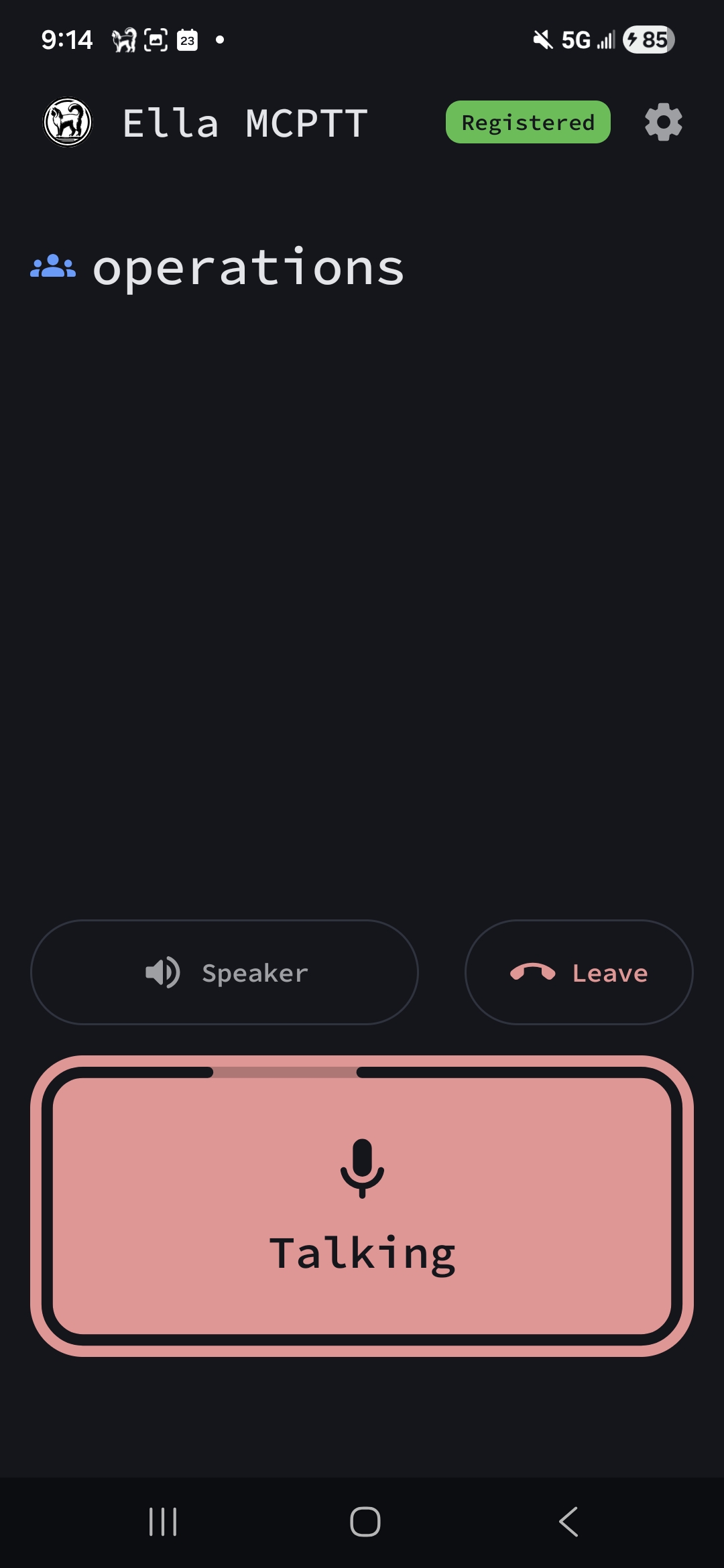
Start the MCPTT client. Go to the Subscribers page and click on the MCPTT user. MCPTT should show Registered.
8. Make an MCPTT call
On the MCPTT client, make a call to another MCPTT user. The call should connect with audio in both directions.